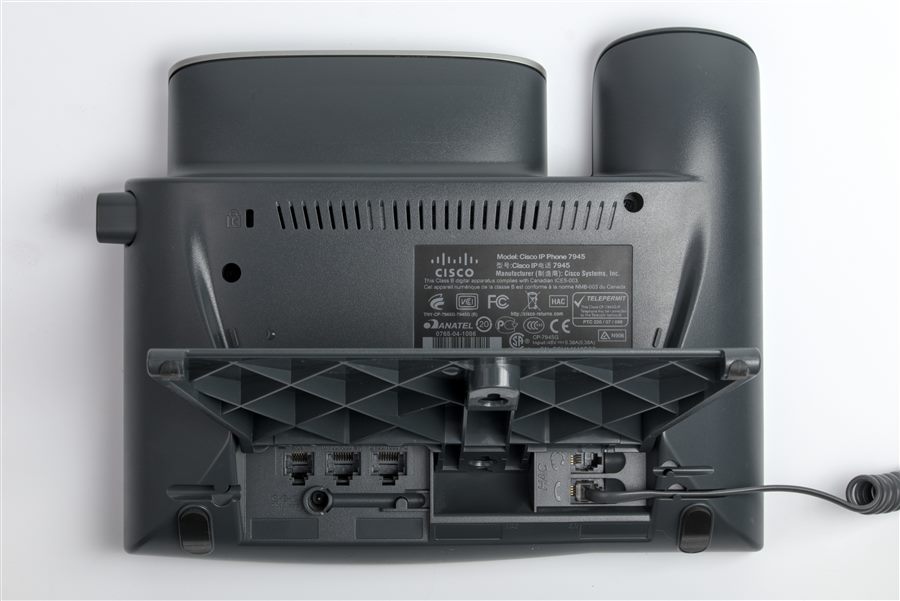
First photo: the label underneath a Cisco phone. The number after "CP-" is the model you need for the guide.


Step 1: identify the phone
- Look underneath. The label shows a model such as "CP-8841". The "CP-" part just means Cisco IP phone; the number is the model.
- Or check the screen. In the settings or applications menu, look for phone information, model information or "About this phone".
- Note the firmware type if shown. Some models come in two firmware types: one for Cisco's own call control, and a "multiplatform" (MPP) version for other systems.
Step 2: find its family
| Family | Examples | Typical use |
|---|---|---|
| 8800 series | 8811, 8841, 8845, 8851, 8861, 8865 | Main desk phones; some with video or Bluetooth |
| 7800 series | 7811, 7821, 7841, 7861 | Everyday desk phones |
| 6800 series | 6821, 6841, 6851, 6861 | Often multiplatform firmware |
| IP DECT 6800 | 6823, 6825 | Cordless handsets |
| 7900 series | 7942, 7962, 7965 | Older models still in use |
| Conference phones | 7832, 8832 | Meeting rooms |
Step 3: open the right guide
Cisco publishes guides on its support site, cisco.com/support ↗. Search for the model number and "user guide". You'll usually find:
- User guide: everyday tasks such as forwarding, voicemail, transfers and conference calls.
- Quick start or quick reference: a one-page card, worth printing for each desk.
- Administration guide: for whoever manages the system. Not needed for daily use.
Check that the guide says "for Cisco Unified Communications Manager" if that's your system, or "multiplatform" if your phones run MPP firmware.
Common questions
Can I buy second-hand Cisco phones and plug them in?
Check with whoever manages your system first. The phone must match your system's firmware type and supported models, and it needs adding to the system before it will work. See Cisco IP phone not registering.
My phone says "Registering" and won't start
That's a registration fault, not a user setting. See Cisco IP phone not registering.
Where is my voicemail PIN?
It's set by your system, not the phone. Ask whoever manages your phones to reset it.
Why the firmware type matters
Many current Cisco desk phones come in two firmware types: one for Cisco's own call control, and a multiplatform (MPP) version for other phone systems. The hardware can look identical, but the menus, features and guides differ. If your guide doesn't match what you see on screen, you may have the guide for the other firmware. Your system administrator can confirm which type your phones run.
Everyday tasks people look up
| Task | Where it usually is |
|---|---|
| Forward all calls | A "Forward all" softkey or line button, then the number |
| Check voicemail | The Messages button or envelope key |
| Transfer a call | The Transfer key, then the number, then Transfer again |
| Conference call | The Conference key during a call |
| Do not disturb | A DND softkey, if your administrator enabled it |
| Adjust ring volume | The volume rocker while the phone is idle |
Exact steps vary by model and firmware.
Accessories and spares
Headsets, expansion modules and power supplies are model-specific, so check the guide before buying. Some models need a particular headset adapter or expansion module, and some take power only from the network cable. Buying the wrong accessory is a common waste of money. The guide lists compatible accessories for each model.
When the guide won't help
If the phone won't start, shows "Registering", or has no dial tone, the problem is usually the network or the system, not how you're using the phone. See Cisco IP phone not registering for start-up faults and Voice VLANs and DHCP for desk phones for how phones join the network.
Your find-the-guide checklist
- Read the model from the CP- label underneath.
- Match the model to its series in the table above.
- Ask which firmware type your phones run.
- Open the user guide for that model and firmware.
- Print the quick reference card for the desk.
Find your Cisco phone's MAC address
A Cisco phone's MAC address is printed on the label underneath, and it's usually shown in the phone's settings under phone or model information. It's a 12-character code using numbers and the letters A to F. Administrators need it to add a phone to the system, where it often appears as "SEP" followed by the MAC address.
How to transfer a call on a Cisco phone
To transfer a call on most Cisco phones, press Transfer, dial the number, then press Transfer again. Wait for the person to answer first if you want to introduce the caller, or press Transfer again straight away to send the call through. Softkey names can differ slightly by model and firmware.
Models people look for most
| Model | Series | Guide to search for |
|---|---|---|
| 7821, 7841 | 7800 | "Cisco IP Phone 7800 series user guide" |
| 8841, 8861 | 8800 | "Cisco IP Phone 8800 series user guide" |
| 6861 | 6800 | "Cisco IP Phone 6800 series" (often multiplatform) |
| 7911, 7941 | 7900 | "Cisco Unified IP Phone 7900 series" (older models) |
Common questions
Where is the model number on a Cisco IP phone?
On the label underneath (for example CP-8841) and in the phone's settings under model or phone information.
What does CP- mean on a Cisco phone?
It's the prefix for Cisco IP phone models; the number after it is the model.
What is MPP firmware?
Multiplatform firmware lets some Cisco phones work with non-Cisco call control. A phone's firmware type must match your system.
Can I use second-hand Cisco phones?
Only if the model and firmware type match your system and someone adds them to it. Ask first.
Sources
Last checked 9 November 2026 against the sources listed here. Menus and defaults can differ by software release, so confirm them on your own system. Spotted a mistake? Tell us.